Limble CMMS · Reporting Workflows
Sharing Maintenance Reports Beyond the Dashboard
I designed a direct email workflow and two PDF layouts so recipients could use a maintenance dashboard outside Limble.
- Starting Point
- Sharing a dashboard outside Limble meant downloading a file and attaching it to an email.
- Design Decision
- Bring recipients, preview, and layout choices into the dashboard workflow.
- What Shipped
- Teams could send a dashboard PDF directly and choose a layout for digital reading or print.
- My role
- Senior Product Designer Led UX design for dashboard sharing and export.
- People involved
- Maintenance teams, report recipients, Product and Engineering
In This Case
Remove the Manual Handoff
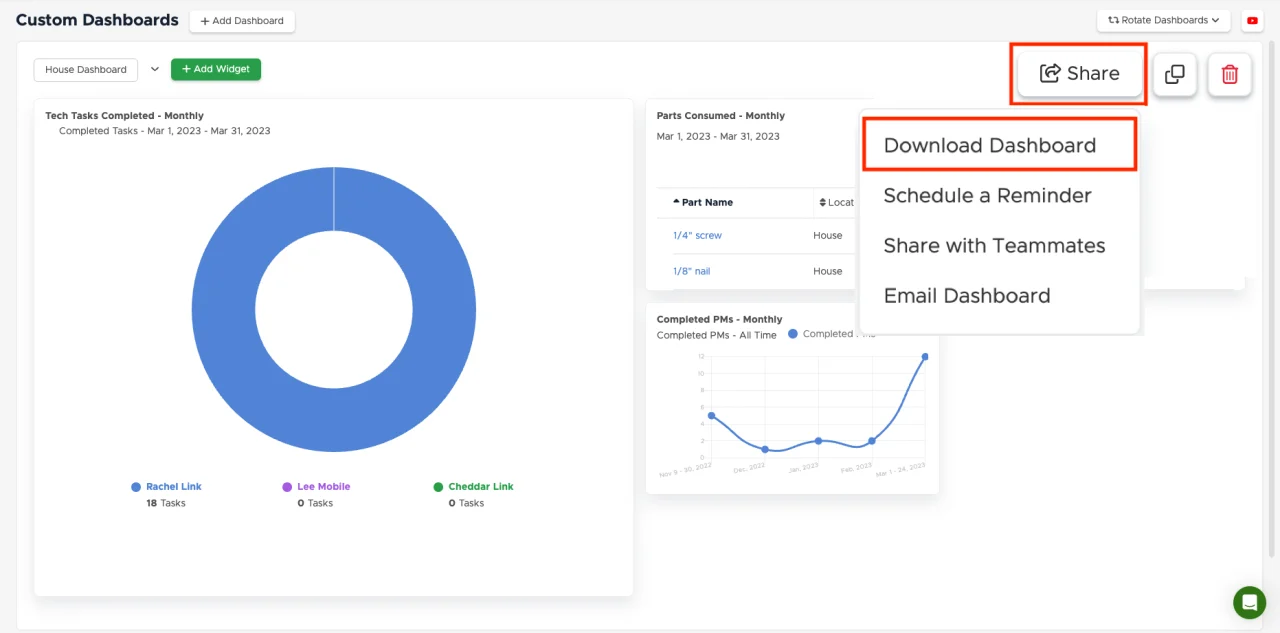
Maintenance dashboards held useful operational data, but getting it to someone outside the product meant downloading a PDF, attaching it to an email, and sending it separately. The report was ready. The handoff still took work.
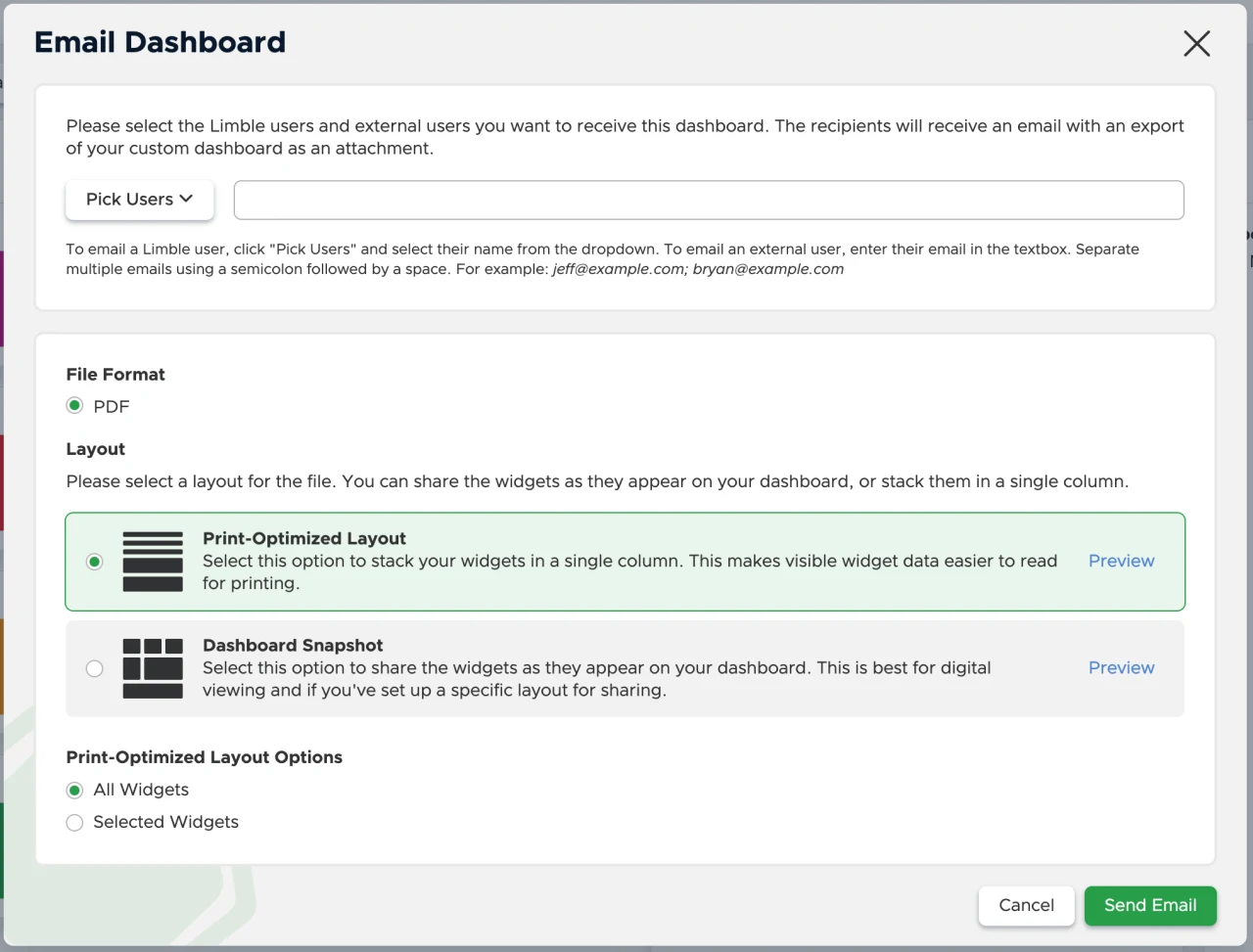
I led the design for sending a dashboard PDF from the desktop app, including to external addresses. The sender already knew the dashboard and what mattered in it. The recipient might be a colleague who could read the grid at a glance or someone who only needed a few figures for a meeting. I used that difference to shape the workflow.
Design for the Person Reading the Report
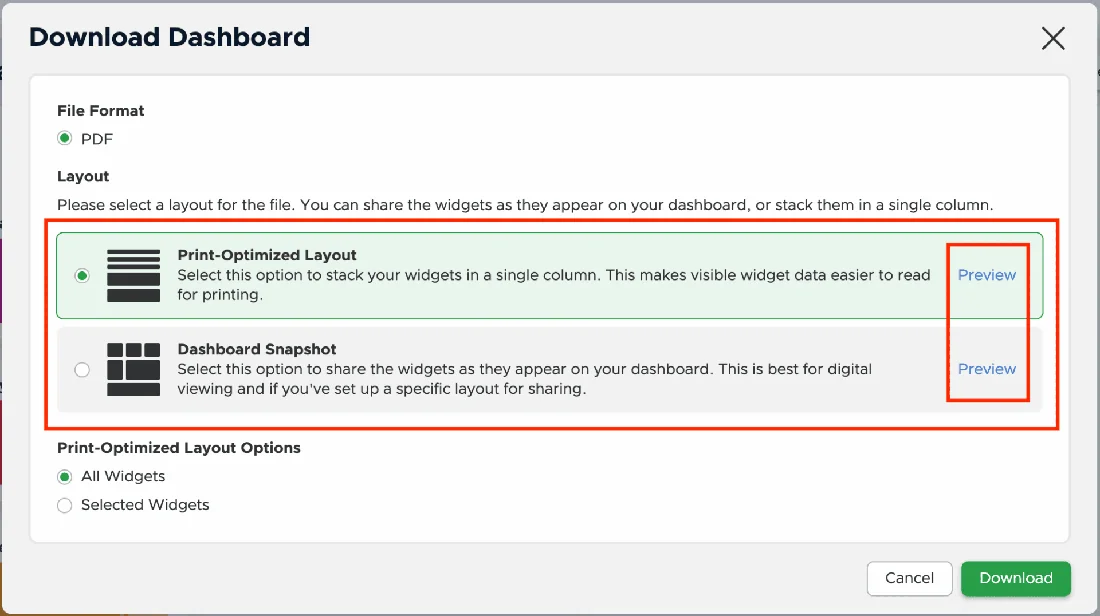
People who knew the dashboard could recognize the existing grid. People reading a printout or opening a report away from the app needed a layout they could follow without that context. We offered Snapshot to keep the dashboard grid and Print Optimized to stack the widgets in a single column.
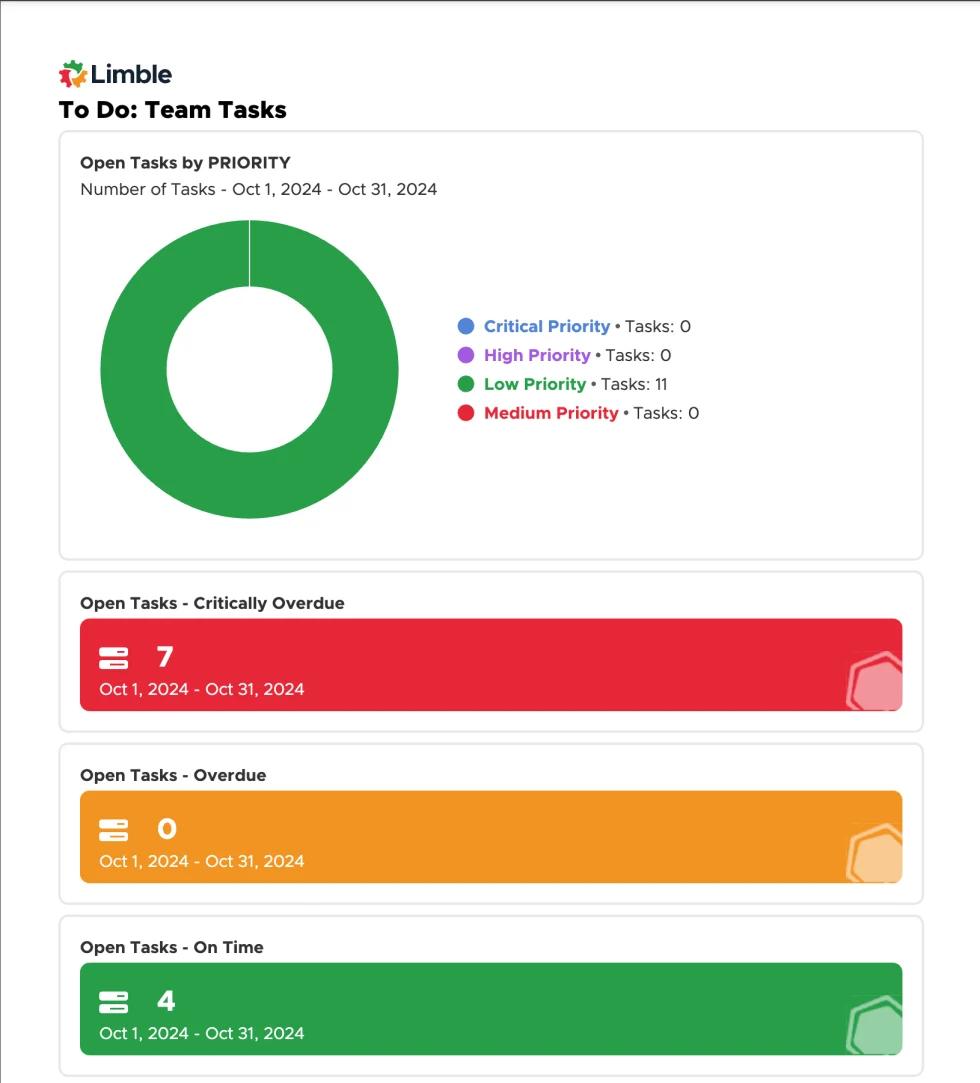
I designed widget selection and preview as decisions the sender could make before sharing. In Snapshot, every widget stays in its familiar position. In Print Optimized, widgets follow the grid from left to right and top to bottom in one column, and the sender can omit widgets the reader doesn’t need. I worked with Engineering on the layout behavior and error handling.
For example, a teammate reviewing the full dashboard may prefer Snapshot because they know where each report lives. A manager reading a paper copy may only need the backlog and completed tasks. Print Optimized gives the sender a way to include those reports in a readable sequence and preview the result.
Make the Delivery Boundary Clear
Sending a PDF changes the audience and how the information can be used. I designed the workflow around three sender decisions before the report leaves Limble.
What the Sender Can Check
Who Will Receive It?
Pick internal users or enter external addresses. The published workflow sends a single email with recipients visible to one another.
What Will They See?
Choose the layout and review the PDF. In Print Optimized, select which widgets the recipient needs.
How Will They Follow Up?
The message comes from Limble with a PDF attached. Recipients with questions contact the sender separately.
The attachment lets an external reader see the report without an account. The PDF is a point-in-time document, and its dashboard name and export timestamp help the reader understand what they’re looking at.
What Shipped
The desktop release brought direct email, preview, and the two PDF layouts into the dashboard workflow. Teams could download or send the report using the same layout choices. They could also use Print Optimized to send a more focused set of widgets.
To evaluate the workflow after release, I’d look at whether senders completed the share, whether they needed to retry, and whether recipients could understand the report on its own. Those checks cover both sides of the handoff.